
- DATE:
- AUTHOR:
- The Veo Product Updates team
One more reason to invite your team to Veo: communication just got easier
Previously, conversations around clips had to happen elsewhere — in WhatsApp threads, voice notes, and follow-up messages that never quite connected back to the footage. With Mentions, that changes.
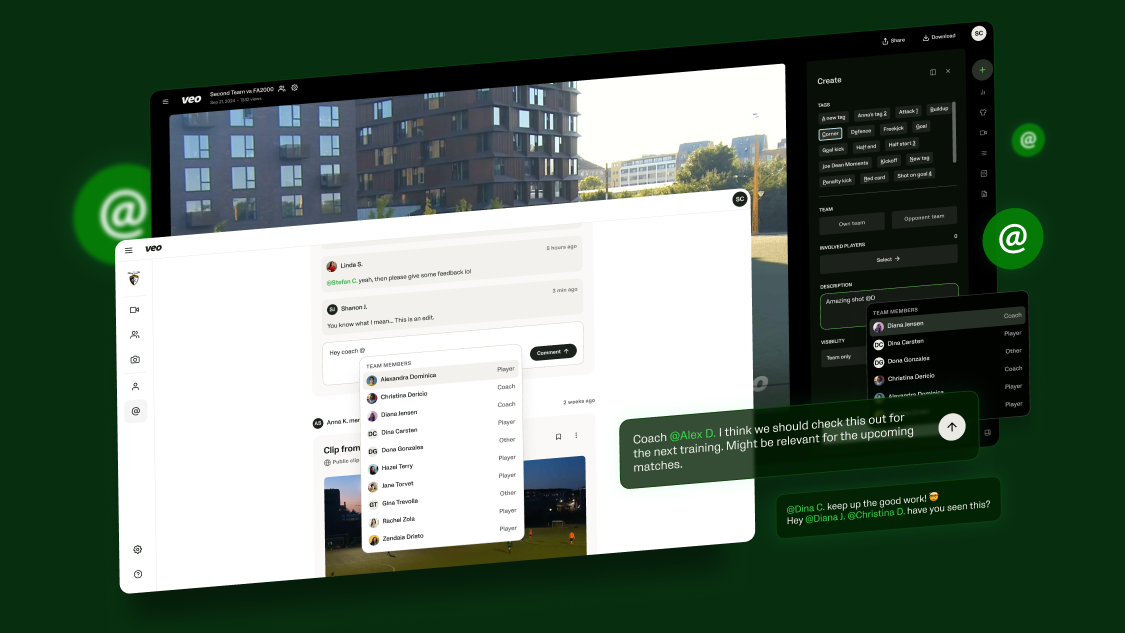
You can now @mention any teammate directly in clip descriptions and comments. Mentioned users get an email notification and can jump straight to the clip. Any role works — players, coaches, and staff alike.
What's new
@mentions in clip descriptions — @mention someone when creating or editing a clip, and they’ll be notified by email.
@mentions in comments — leave a comment on any clip and @mention whoever needs to see it. Only people you explicitly @mention will be notified.
Clip page — clips now have their own dedicated page: the clip, its description, and all comments in one place. A space to have a real conversation around the footage.
Mentions page — available to all roles. See every clip where you’ve been mentioned (or tagged — if you are a player), search and filter your mentions, and reply directly from the page.
Clip visibility — you can always see who a clip is visible to, shown on the Mentions page, the Clip page, and in the Editor. Engage others in conversation without worrying about who can or can’t see the clip.
Involved players vs. mentions
We’ve separated tagging players in a clip and @mentioning.
You can still tag a player in a clip by adding them as an Involved player. They will get a notification in the same way as they did before and will be able to see the clip they were tagged in on their Mentions page.
@mentioning is used to engage any member of the team in a conversation, regardless of whether they appear in the clip or not.
Having a private conversation
Clip visibility gives you control over who’s part of the conversation:
If a coach wants to speak directly with a player, they can create a clip with visibility set to Involved players and mark the relevant player as an Involved player — only the coach and that player will see the clip.
If a player wants to share something privately with their coaches, they can set clip visibility to Coaches only and @mention specific coach(es) in the description or a comment to draw their attention to the clip.
For more details on how Mentions works, visit the Veo Help Center.